Your Vendor’s App Is an Identity Too: 5 Lessons from the MSP Process Breach
Satvik Bansal · November 11, 2026
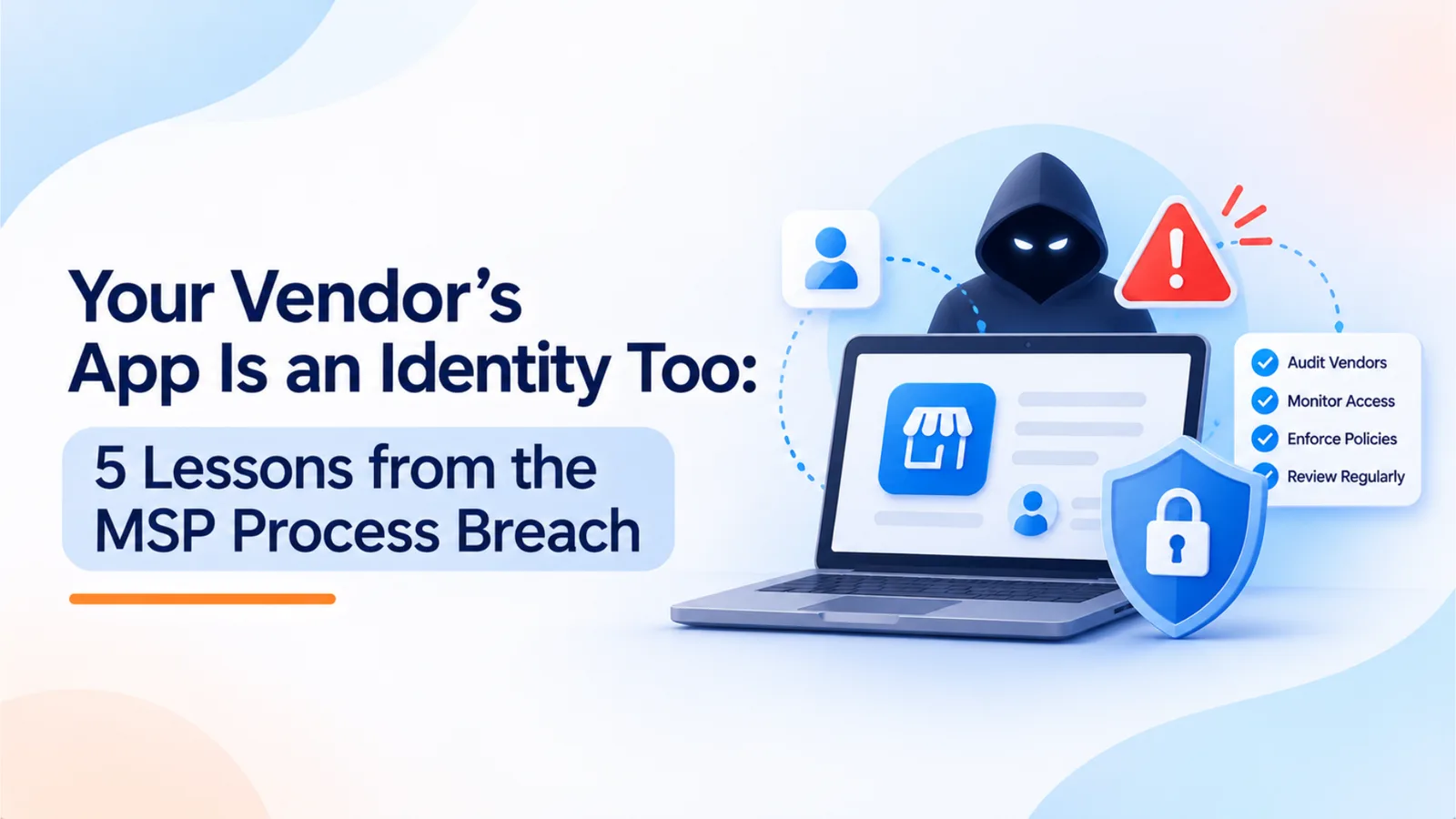
Stolen app secrets from MSP Process reportedly reached customer Microsoft 365 tenants with no user sign-in and no MFA prompt. This guide explains why MFA and SSO did not help, and gives a five-step third-party app permissions audit covering scopes, owners, secrets, and alerts.
A vendor’s app in your Microsoft 365 tenant can act like a user, even when no user is signing in. The MSP Process breach shows what happens when that app’s credentials are stolen. Any third-party app with permissions in your tenant is an identity, and it needs the same review you give an employee account.
What Happened
MSP Process is a software company that serves more than 1,000 managed service providers (MSPs). According to The Stack’s report, published November 9, 2026 and updated the next day, attackers stole Microsoft Entra app client IDs and secrets, admin refresh tokens, and lists of granular delegated admin privilege (GDAP) relationships. They then used the stolen material to reach client tenants.
The Stack reports that MSP Process software typically holds User.ReadWrite.All and authentication method permissions in client tenants. An app with those permissions can change user accounts and their multi-factor authentication settings. MSP Process told customers on November 7 that anyone holding an app’s client secret could use those permissions in client tenants with no user sign-in and no MFA.
The Stack also quoted a Huntress staffer who said, in a post on r/MSP, that Huntress had seen “successful malicious token grants in 47 tenants during the attack window.” That figure comes from a single responder’s post, not a formal count, so treat it as an early indicator.
Why MFA and SSO Did Not Help
Multi-factor authentication protects user sign-ins. Single sign-on controls where users sign in. Neither applies when an app authenticates with its own secret.
When an app uses client credentials, no person signs in and no MFA prompt appears. The app gets a token because it presents the right secret. The user-facing controls you have configured, such as MFA requirements and sign-in conditions, are not part of that exchange.
A similar pattern appeared in the ConnectWise Cloud Backup incident in October 2026. Microsoft Threat Intelligence said the attacker had compromised the trusted OAuth app and that the attacker “likely abused permissions previously granted by customers,” including Directory.ReadWrite.All. Huntress observed confirmed unauthorized sign-ins across 173 Microsoft 365 partner and customer tenants. In both incidents, permissions that customers had granted once remained in effect long after the original approval.
The lesson is simple: MFA and SSO protect people. They do not protect the apps people authorized.
The Five-Step Third-Party App Permissions Audit
1. List every connected app. In Microsoft Entra, review enterprise applications, app registrations, and admin consents. Include apps that individual users authorized, not only those IT approved. Add managed service provider relationships and GDAP links. For each entry, record the app name, the vendor, the tenant, and the date the grant was made.
2. Flag high-privilege scopes. Mark every app with broad application permissions. Priority scopes include User.ReadWrite.All, Directory.ReadWrite.All, RoleManagement permissions, mailbox-wide access such as Mail.ReadWrite, and anything that controls authentication methods. An app that needs one mailbox does not need tenant-wide write access.
3. Map each app to an owner. Every app needs a named internal owner who can explain why it exists and approve its permissions. Vendor-managed apps need an owner too, usually the person who manages the vendor relationship. An app without an owner should be disabled until someone claims it.
4. Rotate and remove secrets. For each app that holds a client secret or certificate, remove credentials nobody recognizes and rotate the ones you keep. Replace static secrets with managed identities or federated credentials where the platform supports them. If an app is retired, disable its service principal. Revoking a secret does not always end access immediately, because tokens already issued can remain valid for a period. Check the sign-in logs after rotation to confirm that the old credential no longer works.
5. Alert on new grants. Set alerts for new admin consents, new app registrations, new client secrets, and changes to high-privilege permissions. Review sign-in logs for service principals, and look for apps signing in from unfamiliar locations or apps you believed were retired. The aim is to learn about a new grant on the day it happens, not at the next quarterly review.
Adding AI Keys to the Same List
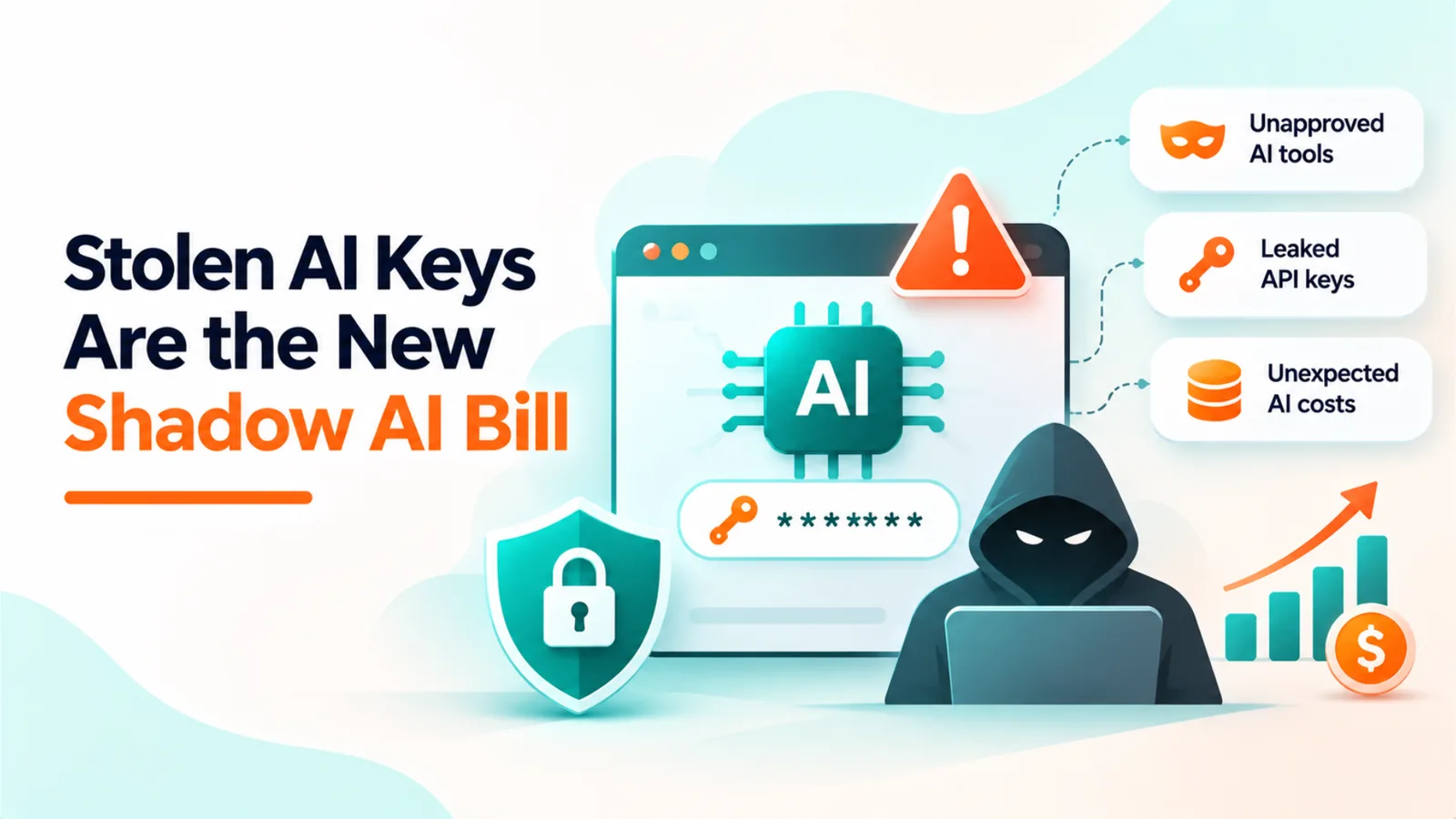
AI provider keys belong on the same list as app permissions, because they carry the same risk. A key that can call a model is a credential, and a stolen key is used like any other.
The cost of that risk is concrete. Cloud hosting provider Railway disclosed on October 22, 2026 that attackers had exploited vulnerabilities in its infrastructure and obtained customer environment variables. BleepingComputer reported that the stolen credentials were used to generate about $740,000 in unauthorized AI usage. Railway’s incident report says the maximum number of potentially affected workspaces is about 100,000, or 1.85% of its workspaces, and that the figure is a ceiling, not a confirmed count. The same breach exposed linked-account tokens for 1,852 users, including GitHub OAuth tokens and AI agent keys. Railway told customers to rotate their secrets.
Track each AI key the way you track an app credential. Record the owner, the purpose, the spend limit, and the last use date. Revoke keys that have no owner, and scope new keys to a single service or environment. A key scoped to one service turns a platform breach into a short rotation. A key that works everywhere turns it into a bill.
Where OptyStack Fits
OptyStack finds SaaS and AI tools using signals from spend, SSO, and browser activity, so applications adopted outside IT appear in one inventory. It maps each tool to the people who sign in to it, flags shadow AI, and ranks each finding by risk. Its integrations with Microsoft 365 and Google Workspace bring the connected-app view into the same list as spend and renewal dates.
OptyStack does not replace Entra’s permission controls, and it does not rotate secrets in your tenant. Ask for a demonstration before you rely on it for permission review. In particular, confirm whether it displays OAuth scopes and granted permissions for each connected app, and whether it alerts on new grants.
If you want to see your connected apps, you can start a free trial.