Your Backup App Was the Breach: A 30-Minute OAuth App Audit for Microsoft 365
Aryan Malik · October 19, 2026
The ConnectWise Cloud Backup incident shows why disabling one application may not be enough. Use this 30-minute Microsoft 365 OAuth app audit to review service-principal sign-ins, search for suspicious credentials, flag excessive permissions and identify dormant apps.
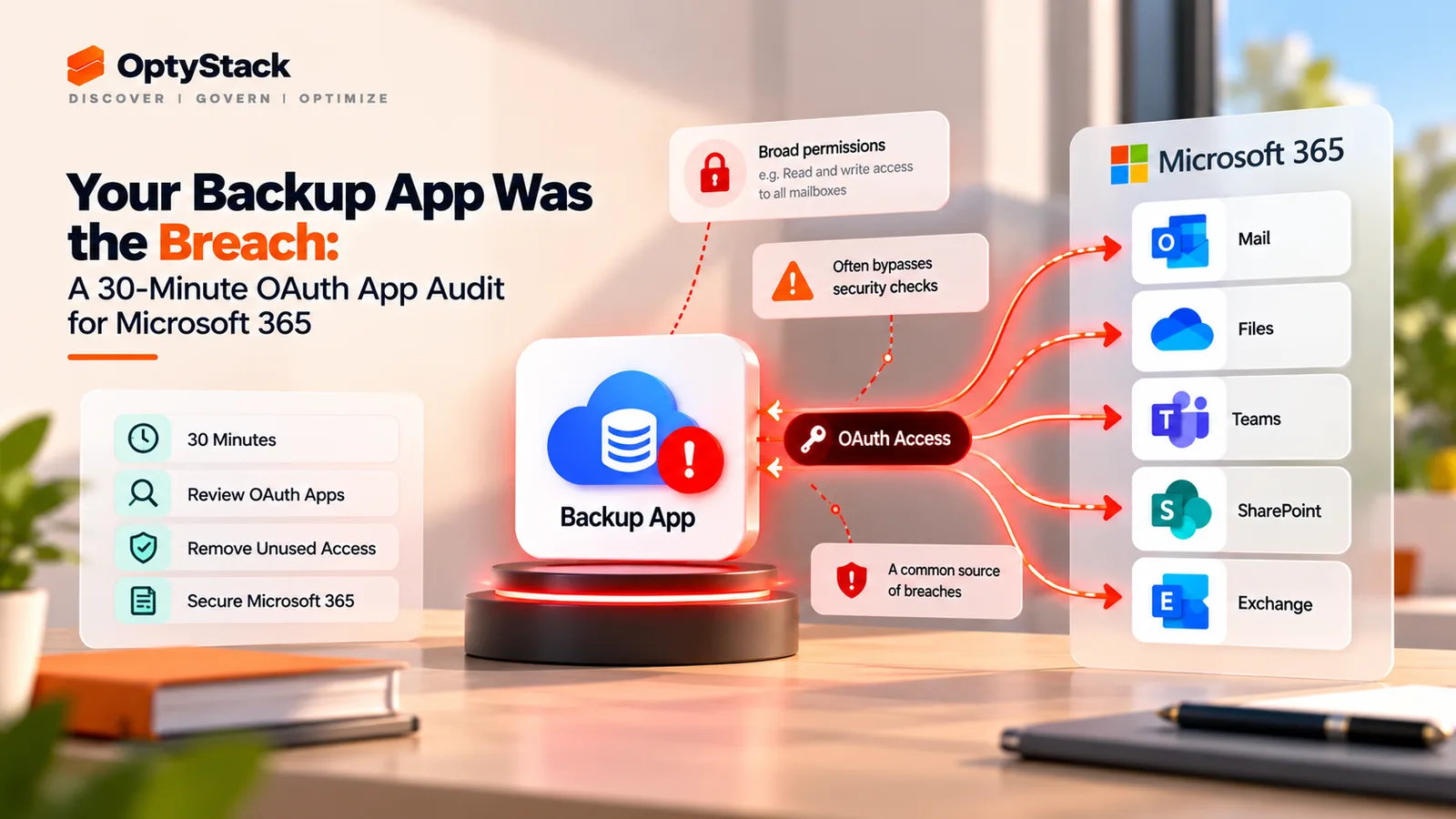
A trusted backup integration can hold permissions to read mailboxes, files, Teams data and directory information across a Microsoft 365 tenant. That access is necessary for the service to do its job. It also means a compromised application credential can become a route into the same environment the backup service was designed to protect.
The October 2026 ConnectWise Cloud Backup incident is a timely reason to review every application with access to your tenant—not just the one in the headlines. In the first 30 minutes, administrators can identify suspicious app sign-ins, investigate recent changes to application credentials and permissions, and disable questionable integrations while preserving the evidence needed for a deeper investigation.
This is an initial triage checklist, not a substitute for your incident-response process.
What happened with ConnectWise Cloud Backup?
On October 13–14, 2026, Huntress reported password-spraying and scripted OAuth activity from an IP address later associated with unauthorized application access, although its telemetry did not show successful user sign-ins from that address during the password-spraying activity. On October 15, a compromised credential associated with ConnectWise Cloud Backup, formerly SkyKick, was used to obtain Microsoft Graph access tokens in customer Microsoft 365 tenants. Huntress later reported almost 1,000 Entra tenants with sign-in activity from the associated IP and more than 300 successful sign-ins, which does not mean every tenant was confirmed compromised. In one investigated tenant, a ConnectWise Cloud Management app assigned itself the Global Administrator role and added client secrets to two other applications, with the new secrets set to expire in 2028. ConnectWise's security advisory subsequently reported disabling seven application identities and revoking certificates associated with the affected connections, while its investigation continued; Microsoft's Entra documentation explains how administrators can investigate application sign-ins.
Two details matter for administrators. First, ConnectWise's reported actions concerned application identities and their credentials; the precise initial mechanism remained under investigation. Second, ConnectWise said it had no indication that its stored backup archives had been compromised. That statement does not establish whether individual customers' live Microsoft 365 tenants experienced unauthorized access.
The latest vendor advisory should remain your source of truth for affected app IDs, indicators of compromise and remediation instructions. These can change during an investigation.
Why MFA and Conditional Access didn't necessarily stop it
MFA is essential for protecting user accounts, but an application can authenticate without a person signing in.
In an app-only OAuth flow, a service authenticates using its own credential—such as a client secret, certificate or signed client assertion—and requests a token for the permissions already granted to it. There may be no interactive user authentication for MFA to challenge. If an attacker obtains a usable application credential, they may be able to request tokens as that application.
Conditional Access needs to be scoped to the identity being protected. A policy that requires MFA for users does not automatically govern service-principal authentication. Microsoft supports Conditional Access for certain workload identities, but its documented coverage does not include third-party multitenant SaaS applications. See Microsoft's guidance on Conditional Access for workload identities.
This is why an application inventory and credential audit matter even in an organization with strong user authentication controls.
The 30-minute Microsoft 365 OAuth app audit
Set aside 30 minutes for a first-pass investigation. If you find unauthorized role assignments, credential changes or suspicious access, preserve your evidence and expand the investigation rather than treating the time limit as a reason to stop.
Minutes 0–5: Identify the affected applications
Open the ConnectWise Trust Center advisory and compare its latest guidance with the applications installed in your tenant.
The October 18 advisory listed seven affected application identities. Two identifiers specifically highlighted in Huntress's reporting were:
Application | Application (client) ID |
|---|---|
ConnectWise Cloud Backup |
|
ConnectWise Cloud Management – MS Teams |
|
Use the current ConnectWise advisory for the complete, up-to-date list rather than relying on these two IDs alone.
In the Microsoft Entra admin center, go to Entra ID → Enterprise apps → All applications. Search for the named applications and verify the application (client) ID, publisher, tenant-local service principal and sign-in status. Display names alone are not reliable identifiers.
If an affected app is present, follow the vendor's and your security team's incident guidance to restrict or disable it. Consider the operational consequences for backup and recovery before changing other integrations. Record the app's identifiers and current configuration, and preserve relevant audit logs.
Minutes 5–12: Inspect service-principal sign-ins
In the Entra admin center, navigate to:
Entra ID → Monitoring & health → Sign-in logs → Service principal sign-ins
These logs record authentication by applications and service principals using their own credentials. They are different from interactive user sign-ins and non-interactive user sign-ins.
Set the date range to cover October 13 onward, or the earliest available date that includes the suspected activity. Review:
Application or service-principal name and ID: Does the identity match a known integration?
Timestamp and result: Are there successful sign-ins outside the application's normal schedule?
IP address: Does it match an indicator in the current ConnectWise advisory?
Resource: Is the application requesting tokens for Microsoft Graph, Exchange Online, SharePoint or another resource it is expected to access?
Authentication details and correlation data: Do the events fit the app's known operating pattern?
As of ConnectWise's October 18 update, its advisory listed 144.172.64.128 and added 144.172.64.99 and 144.172.64.60 as indicators supplied through downstream security monitoring. Correlate these with the app ID, event time, resource and other evidence; an IP match by itself does not prove compromise. Huntress also cautioned that some observed user-agent strings were not unique to malicious activity.
Microsoft explains how these records are grouped and how to inspect individual events in its service-principal sign-in documentation.
Minutes 12–22: Search for credentials planted in other applications
This is the step that can be missed when a team focuses only on disabling the original integration.
In Entra, open Entra ID → Monitoring & health → Audit logs. Set the start date to October 13, 2026, and investigate changes involving application registrations, enterprise applications, service principals, credentials, permissions and directory roles.
Start with these activities:
Add service principal credentials
Update application – Certificates and secrets management
Update application or service-principal updates involving credential changes
Add member to role, particularly a high-privilege directory role
Add app role assignment to service principal
Add delegated permission grant
Microsoft lists these and related events in its guidance on security operations for applications.
For every suspicious event, establish the initiator, target application, timestamp, result and available details about the change. Ask whether an approved administrator or automation process made it. A service principal adding itself to a privileged directory role, or adding credentials to an unrelated application, should receive immediate investigation.
Inspect the application's credential metadata, including credential type, key ID, display name and validity dates. Huntress reported that secrets added in one investigated tenant were set to expire in 2028. A long expiration date is not evidence of legitimacy; it can make an unauthorized credential useful for longer if it remains active.
Audit all applications, not only ConnectWise applications. A secret added to a separate application can remain after the original integration is disabled. Review app credentials created or modified since October 13 and verify that each has an accountable owner and a documented reason. Treat this date as the start of the investigation window, not proof that every credential added after that date is malicious.
Minutes 22–26: Flag permissions that deserve scrutiny
Go to Entra ID → Enterprise apps → All applications, open the application, and inspect its permissions and role assignments. The exact view available can depend on the application's configuration and your administrative role.
Prioritize broad permissions such as:
Permission or access type | Why to review it |
|---|---|
| Allows an application to read and write broad directory data, including information about users and groups, without a signed-in user. |
| Allows an application to create, read, update and delete applications and service principals without a signed-in user. |
| Can allow changes to application role assignments, making it important to scrutinize. |
Broad mail permissions, such as | May permit access to or modification of mail data beyond a narrow business need. |
Broad SharePoint or file permissions, such as | Can expose large amounts of business data or permit substantial changes to it. |
Privileged Microsoft Entra directory roles | May give an application administrative control beyond its normal business purpose. |
Use Microsoft's Microsoft Graph permissions reference to verify the exact scope and meaning of a permission.
These permissions are not automatically malicious. Backup, security and administrative products can legitimately require substantial access. The questions are whether the access is necessary, whether the application owner approved it, whether it matches the vendor's documented requirements, and whether it changed unexpectedly.
Minutes 26–30: Find dormant and ownerless applications
Review applications that have not signed in recently, have unknown owners, have unexplained credentials or retain permissions no one can justify.
Start with enterprise applications and compare each app's recorded owners, purpose, permissions and service-principal sign-in history. Look for duplicate or unfamiliar applications, unexpected publisher information, credential dates that do not match change records, and old integrations that are still authorized.
Do not treat a lack of recent sign-ins as conclusive proof that an application is unused. It may run monthly, quarterly or only during a particular business process, and logs may not cover the full period you need. Verify with the owner and check the expected operating schedule before removal.
By the end of the first pass, every high-risk finding should have an owner, a decision and a documented next step. If you discover suspicious credentials or role assignments, the review is no longer routine hygiene: follow your incident-response process and examine the wider tenant for persistence and data access.
Disable versus delete: preserve evidence and remove persistence
During an active investigation, disabling the affected enterprise application or service principal is generally a better first step than immediately deleting it. It can block new authentication in your tenant while preserving configuration information for analysis. Huntress specifically advised disabling the implicated application identities rather than deleting them, and Microsoft's documentation recommends considering deactivation before deletion for investigation or temporary suspension. See Microsoft's guidance on deleting an enterprise application.
There are three important caveats:
Disabling an app does not undo earlier changes. Review and remove unauthorized credentials, role assignments and permissions separately.
Previously issued tokens may remain usable until they expire or are otherwise invalidated. Do not assume disabling a service principal ends every session immediately.
Deleting a service principal in your tenant does not delete the publisher's application registration or remove it from other tenants. For a multitenant app, other customers' service-principal instances are separate.
Delete an application only after you have captured relevant evidence, verified that it is no longer needed and followed your organization's investigation and change-management requirements. For a suspected compromise, prioritize containment and credential remediation over tidying the application list.
Make OAuth app discovery a monthly habit
A one-time audit can find the applications and credentials that need attention today. A recurring process helps prevent the same gaps from returning.
Once a month, review:
Inventory: Maintain a list of SaaS applications and enterprise apps, including their owners and business purpose.
Credentials: Flag new or modified application secrets and certificates, especially those with unusually long lifetimes or no approved change.
Permissions: Compare app permissions and role assignments against the previous review, and investigate increases in access.
Activity: Review service-principal sign-ins and investigate changes in source IPs, frequency, resources or authentication patterns.
Ownership: Assign a named owner and a backup for every application that can access business data.
Dormant access: Confirm that old integrations are still required, then disable or remove those that have no valid business purpose.
You can automate alerts for credential additions, unexpected role assignments and high-privilege permission grants. Export Entra audit and sign-in logs to an appropriate central logging or SIEM platform if your licensing, retention requirements and security operations process support it. A monthly review should supplement—not replace—alerts for suspicious activity that requires a faster response.
OptyStack can support the broader application-inventory part of this process by bringing SaaS and AI application signals, including identity, billing and usage information, into one view. It is not a replacement for Microsoft Entra sign-in logs, application-permission analysis or credential revocation; those actions belong in the identity and security systems that control access.
The takeaway: Don't stop at the app that first raised the alarm. Review who signed in as each application, what permissions it holds, who changed its credentials and whether another app was modified along the way. A backup integration should have only the access it needs—and every credential with access to your Microsoft 365 tenant should have an owner and a reason to exist.