Overview
OptyStack integrates with more than 100 popular SaaS applications such as Google Workspace, Slack, Zoom, Salesforce, Figma, and Jira etc
When you connect an application, OptyStack automatically retrieves user data, license details, and spend information to help you monitor utilization and reduce waste.
Only users with the Admin or Manager role can add or manage integrations. Users with the Read Only role can view data and reports but cannot make changes.
Step 1: Log in to the OptyStack Hub
Go to https://hub.optystack.ai
Log in with your registered email and password.
After logging in, you will see your main dashboard with spend summaries, active tools, and recommendations.
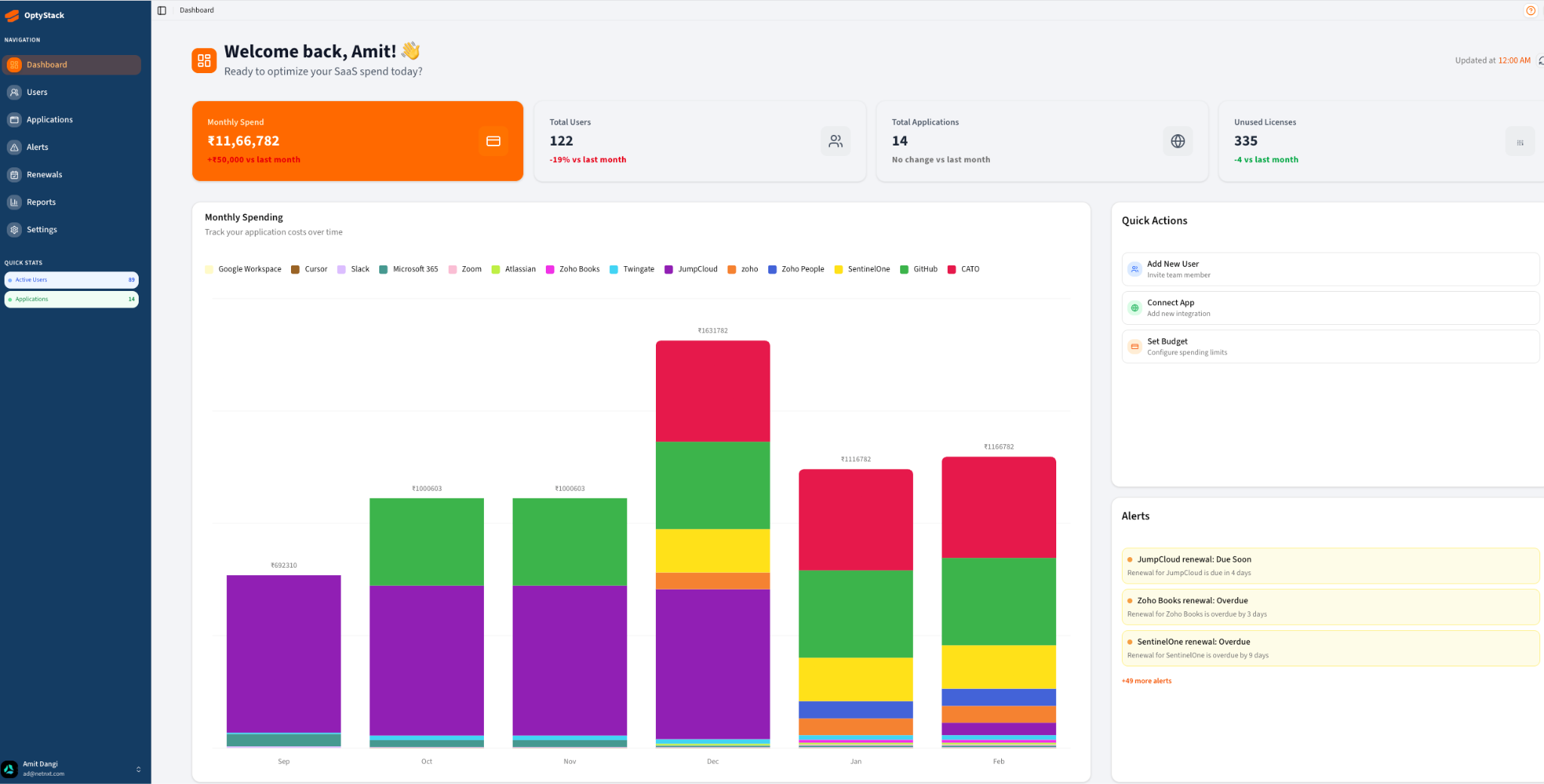
From the main navigation menu, select Applications.
You will see a list of supported applications available for connection.
Find the "Zoom" application under the "Available applications" and click configure.
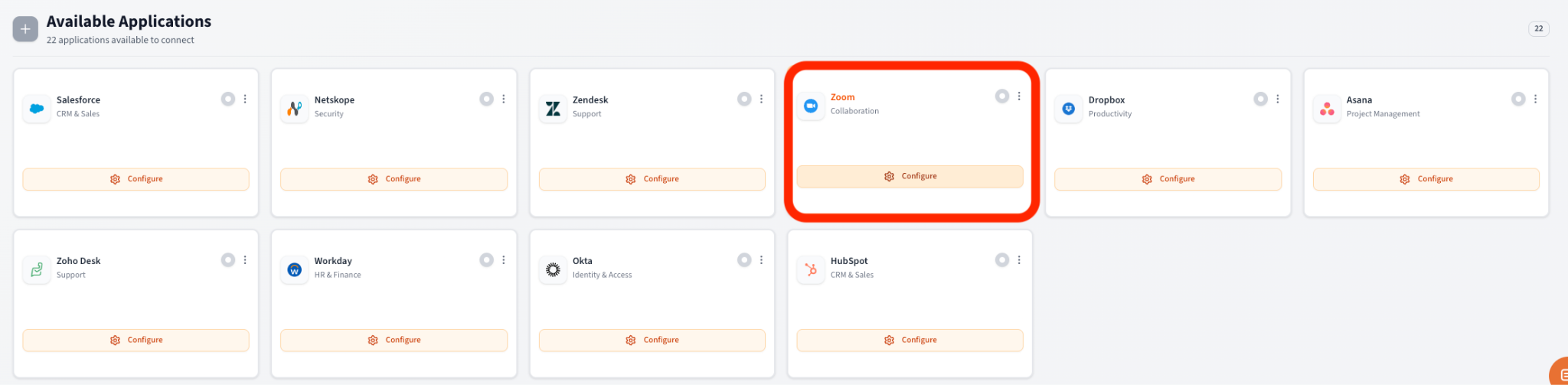
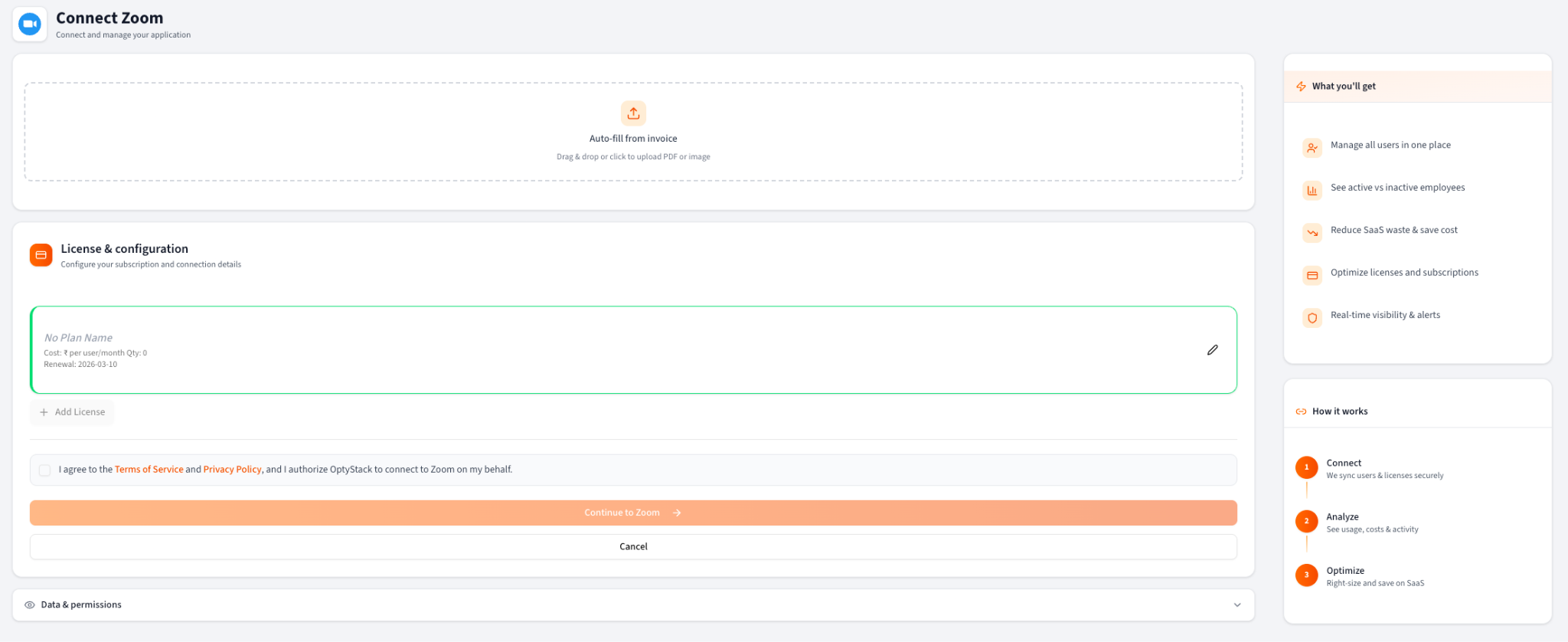
You can either upload the invoice here to auto-populate the form fields or fill up the form and hit the Continue to Zoom button. (Optional: you can also upload the contract to track the auto renewal or notice period etc)
Allow the permissions.
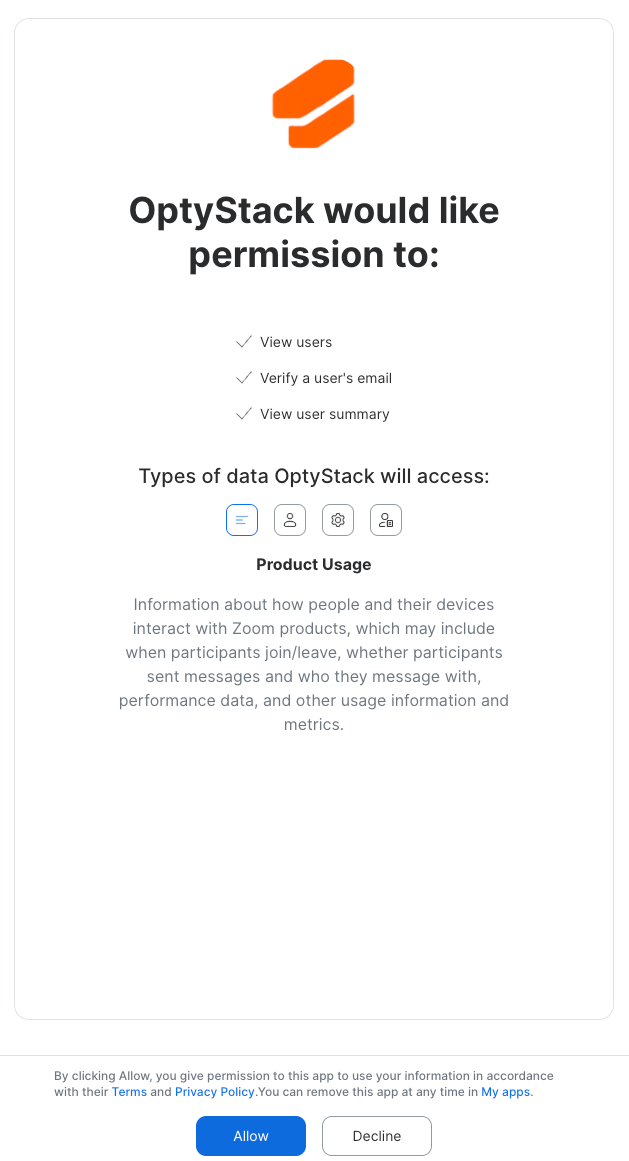
Once authorized, the integration process will begin automatically.
Step 2: Review Application Insights
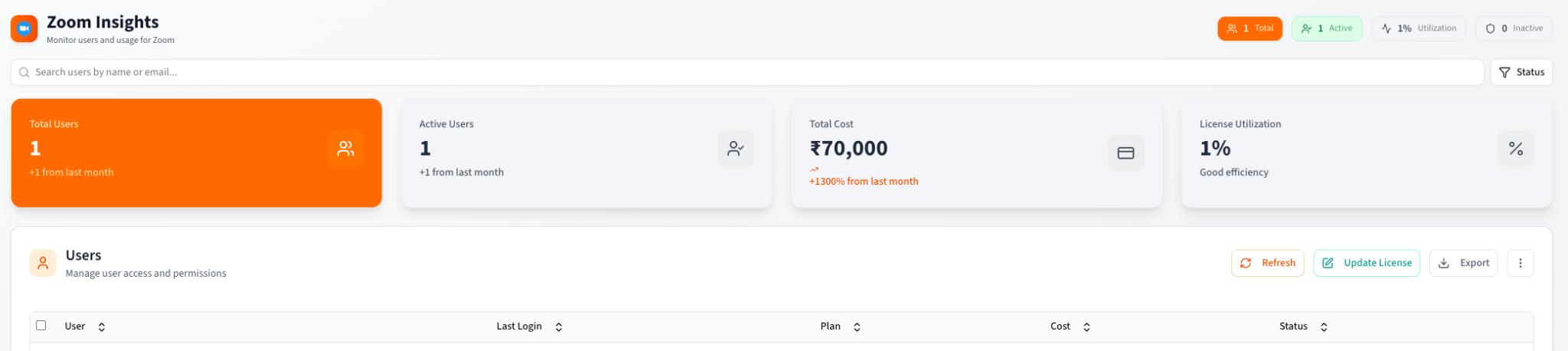
When data syncing is complete, you can view insights for each connected application under Application → Insights. OptyStack displays key information such as:
Total licenses purchased
Active and inactive users
Last activity date
Potential cost savings
Renewal dates
These metrics help you identify unused or underutilized licenses and make informed optimization decisions.
Step 3: Set Up Alerts (Optional)
You can configure alerts to stay informed about important events related to your connected applications.
Go to Alerts → Alerts Settings.
Choose the alert type you want to enable, such as high spend, low usage, or renewal reminders.
Save your preferences.
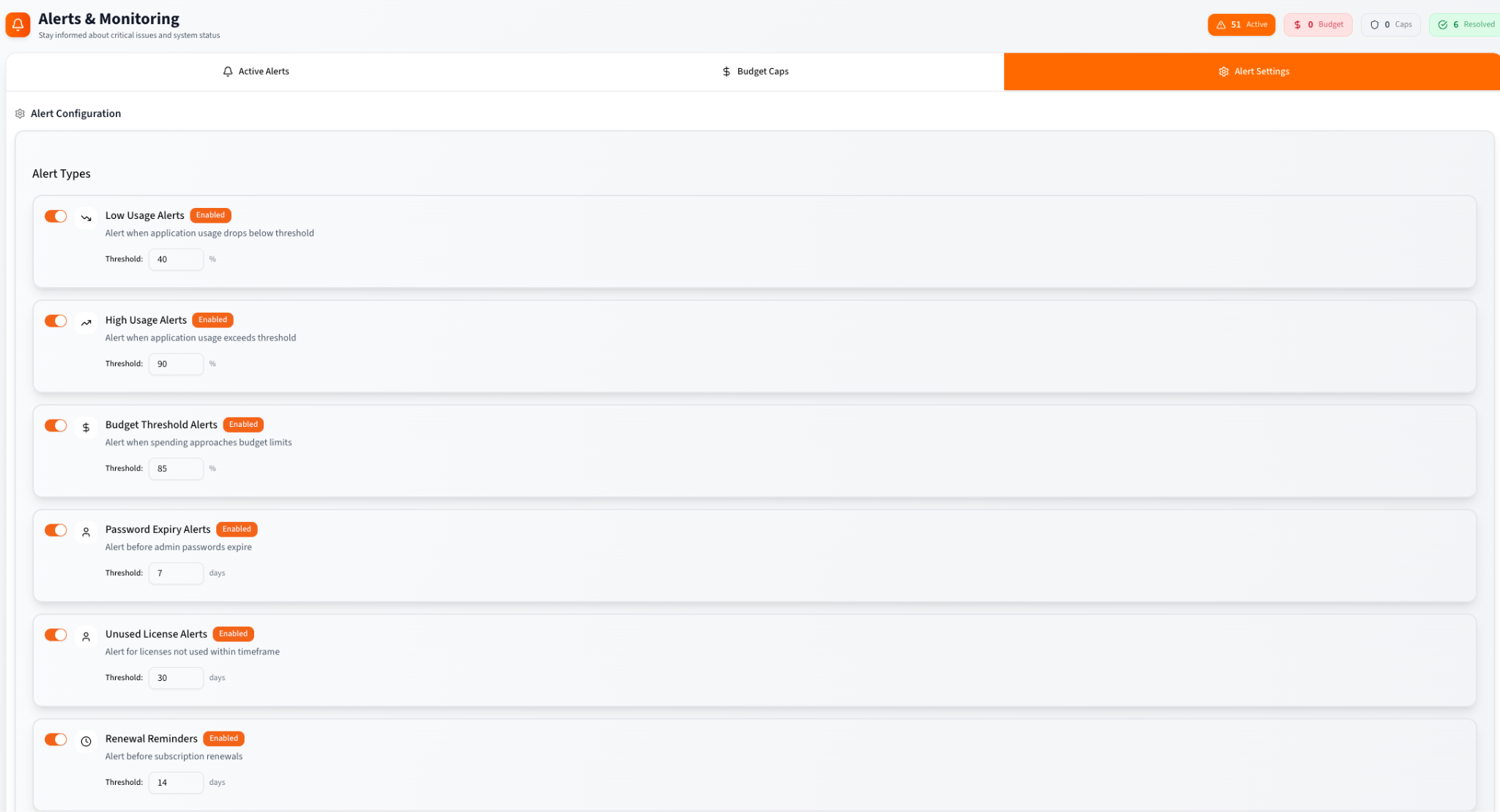
Alerts will be sent to your registered email and appear in your OptyStack notification center.If you do not find a particular app, you can contact OptyStack support to request a new integration.
Step 4: Manage or Disconnect an Application
If you need to disconnect an app:
Go to Applications → Connected Apps.
Click on the three dots on the top right of the application card.
Click Disconnect and confirm your choice.
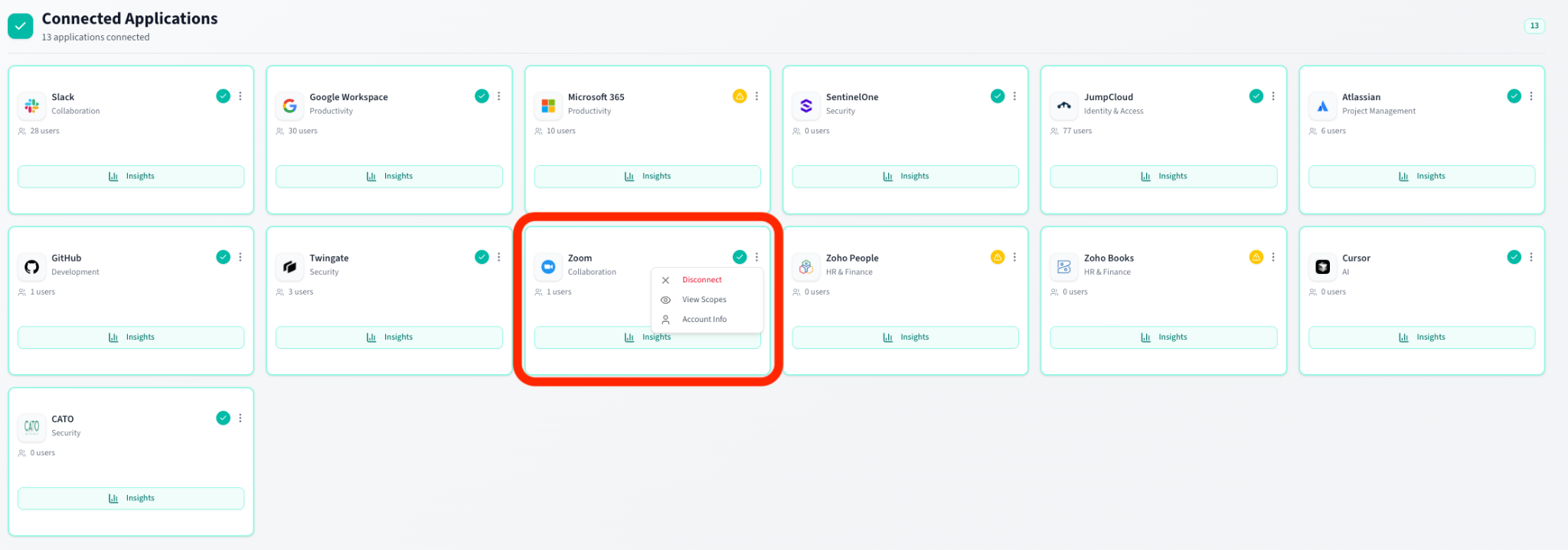
You can reconnect an app at any time using the same steps described earlier. Your historical data will remain available in your account.
Need Help?
If you experience issues while setting up an application, contact the OptyStack support team.
Email: support@optystack.ai
Live Chat: Available in your OptyStack dashboard