Overview
OptyStack now allows administrators to discover the apps used by all the users across Organisation.
When you connect an application, OptyStack automatically retrieves user data, license details, and spend information to help you monitor utilization and reduce waste.
Only users with the Admin or Manager role can add or manage integrations. Users with the Read Only role can view data and reports but cannot make changes.
Step 1: Log in to the OptyStack Hub
Go to https://hub.optystack.ai
Log in with your registered email and password.
After logging in, you will see your main dashboard with spend summaries, active tools, and recommendations.
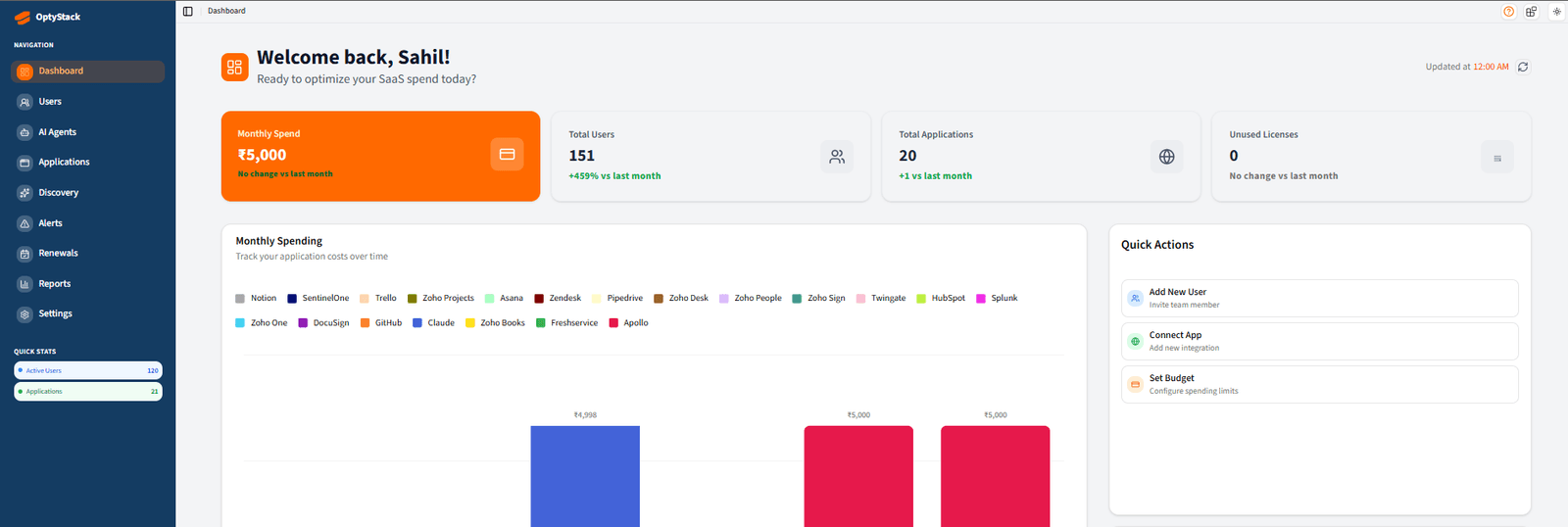
4. From the sidebar menu, click on Applications to view the Salesforce application.
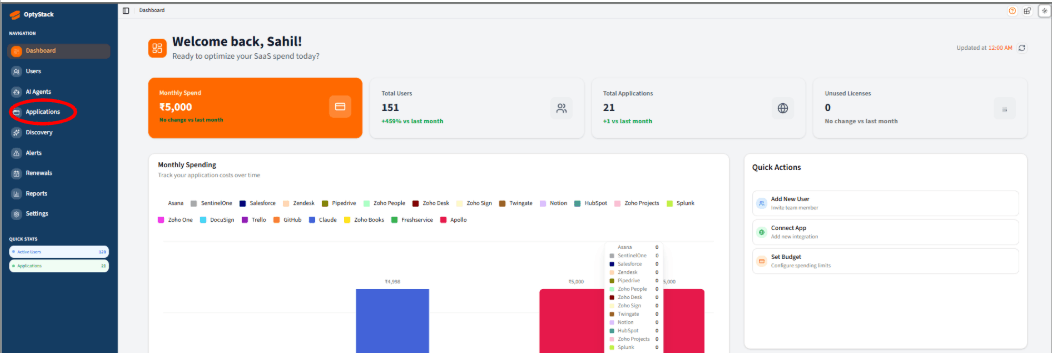
Step 2: Connect an Application
1. In the Applications section, under Available Applications, click on Configure Salesforce to integrate the application.

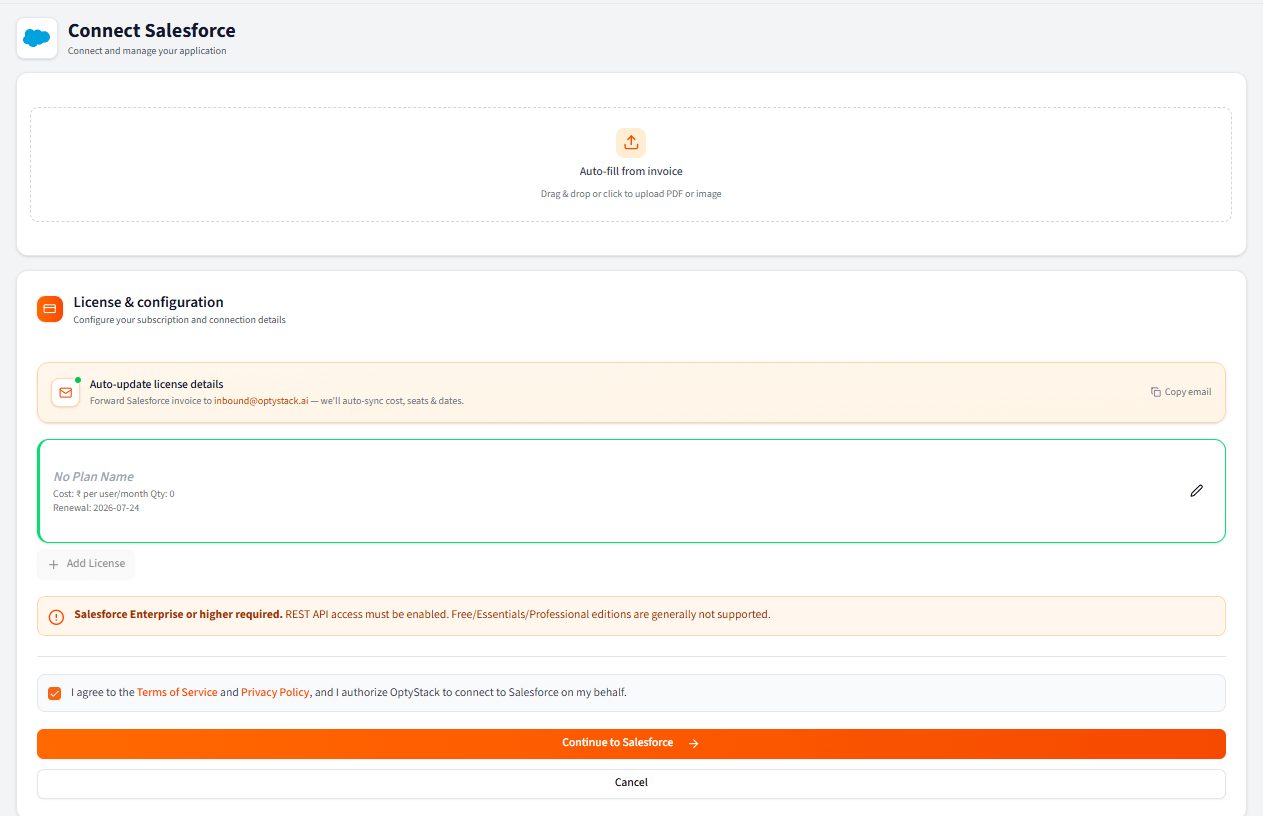
2. To Integrate Salesforce, follow the steps given below:
(i) Check the consent checkbox to accept Terms of Service and Privacy Policy.
(ii) Click Continue to Salesforce.
(iii) You will be redirected to Salesforce OAuth authorization screen.
(iv) After successful authorization, the app establishes a secure OAuth connection and redirects back.
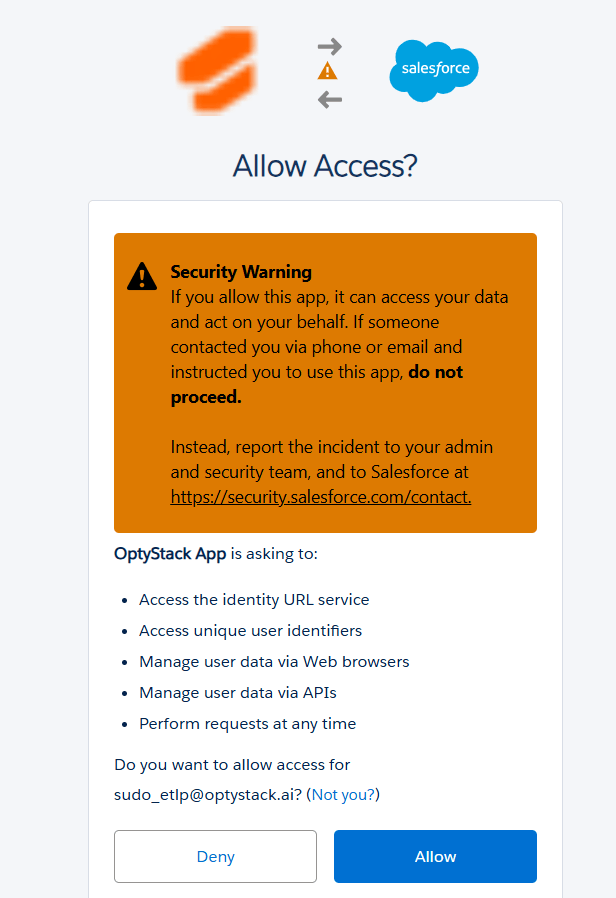
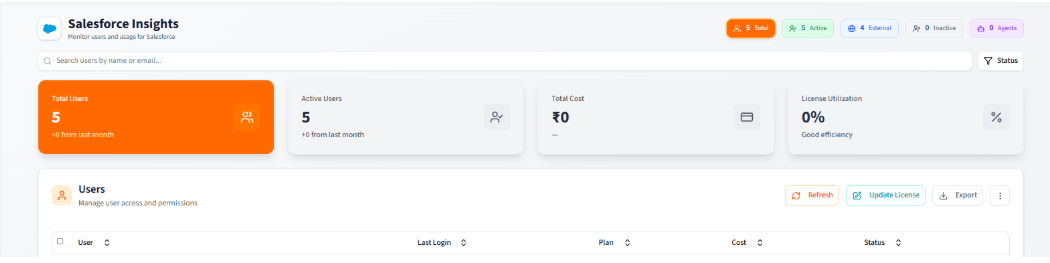
3. After you click allow, your Salesforce workspace is successfully connected, and the application can now access it using granted permissions.
Step 3: Disconnect an Application
1. You can disconnect an application from the Application Hub by clicking the three-dot (⋮) menu on the app card and selecting Disconnect. This will revoke the connection for that app (e.g., Salesforce) and remove its access to your workspace.

Need Help?
If you experience issues while setting up an application, contact the OptyStack support team.
Email: support@optystack.ai
Live Chat: Available in your OptyStack dashboard
Documentation: Knowledge Base