Overview
OptyStack now allows administrators to discover the apps used by all the users across Organisation.
When you connect an application, OptyStack automatically retrieves user data, license details, and spend information to help you monitor utilization and reduce waste.
Only users with the Admin or Manager role can add or manage integrations. Users with the Read Only role can view data and reports but cannot make changes.
For broader SaaS visibility, explore the OptyStack Knowledge Base, review platform features, and compare plans on pricing.
Step 1: Log in to the OptyStack Hub
Go to https://hub.optystack.ai
Log in with your registered email and password.
After logging in, you will see your main dashboard with spend summaries, active tools, and recommendations.
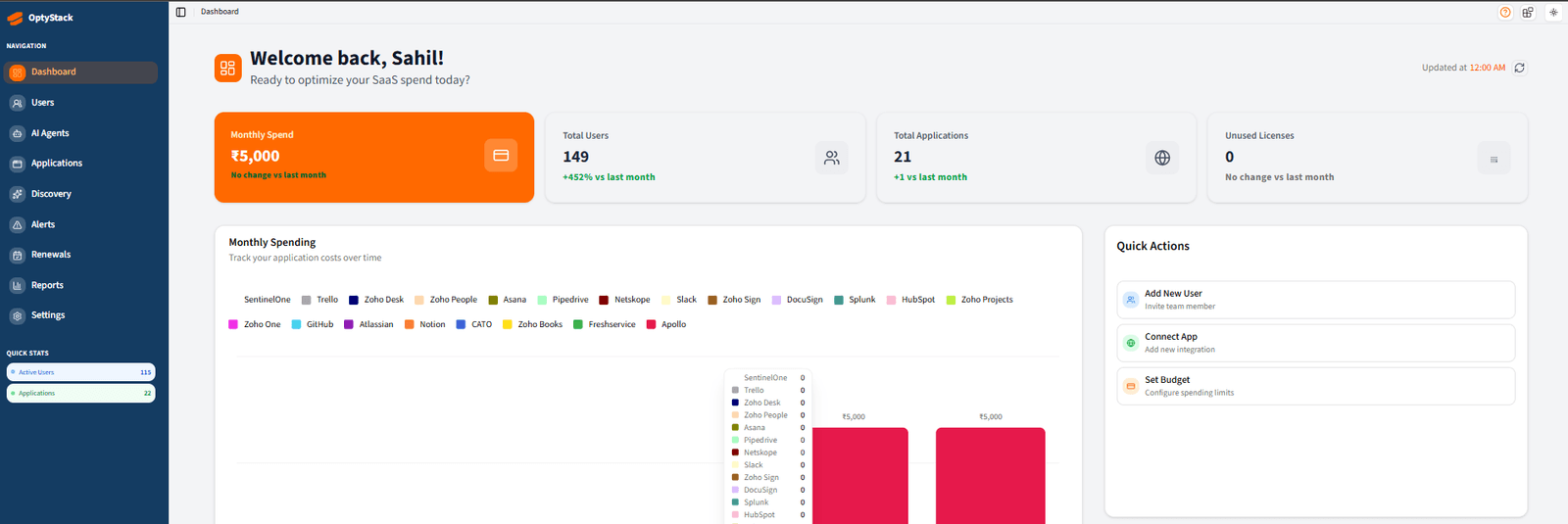
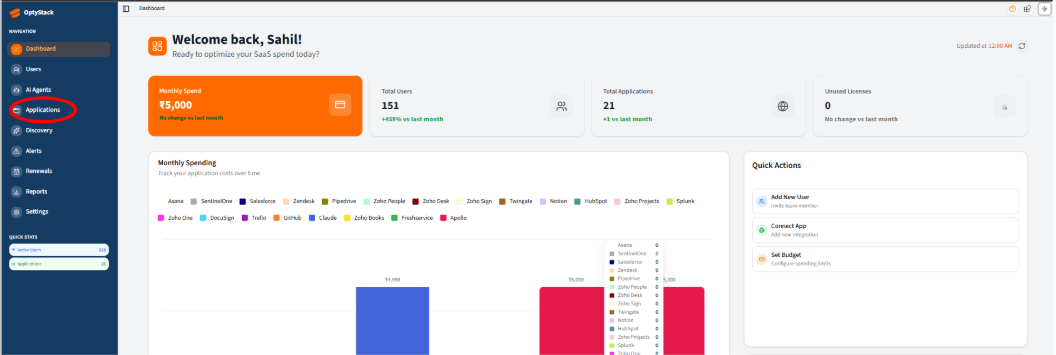
4. From the sidebar menu, click on Applications to view the Claude application.
Step 2: Connect an Application
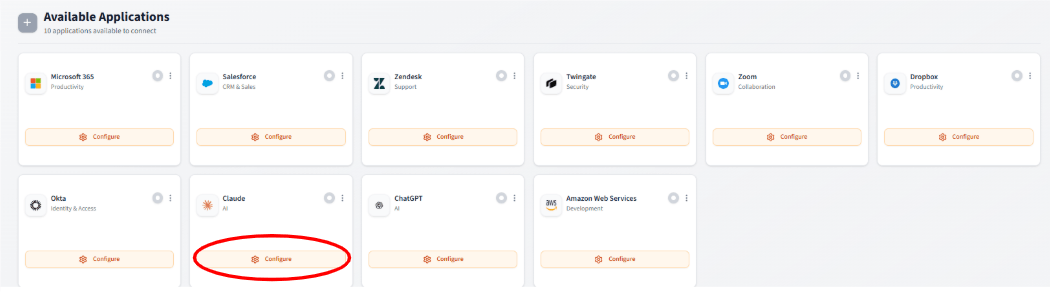
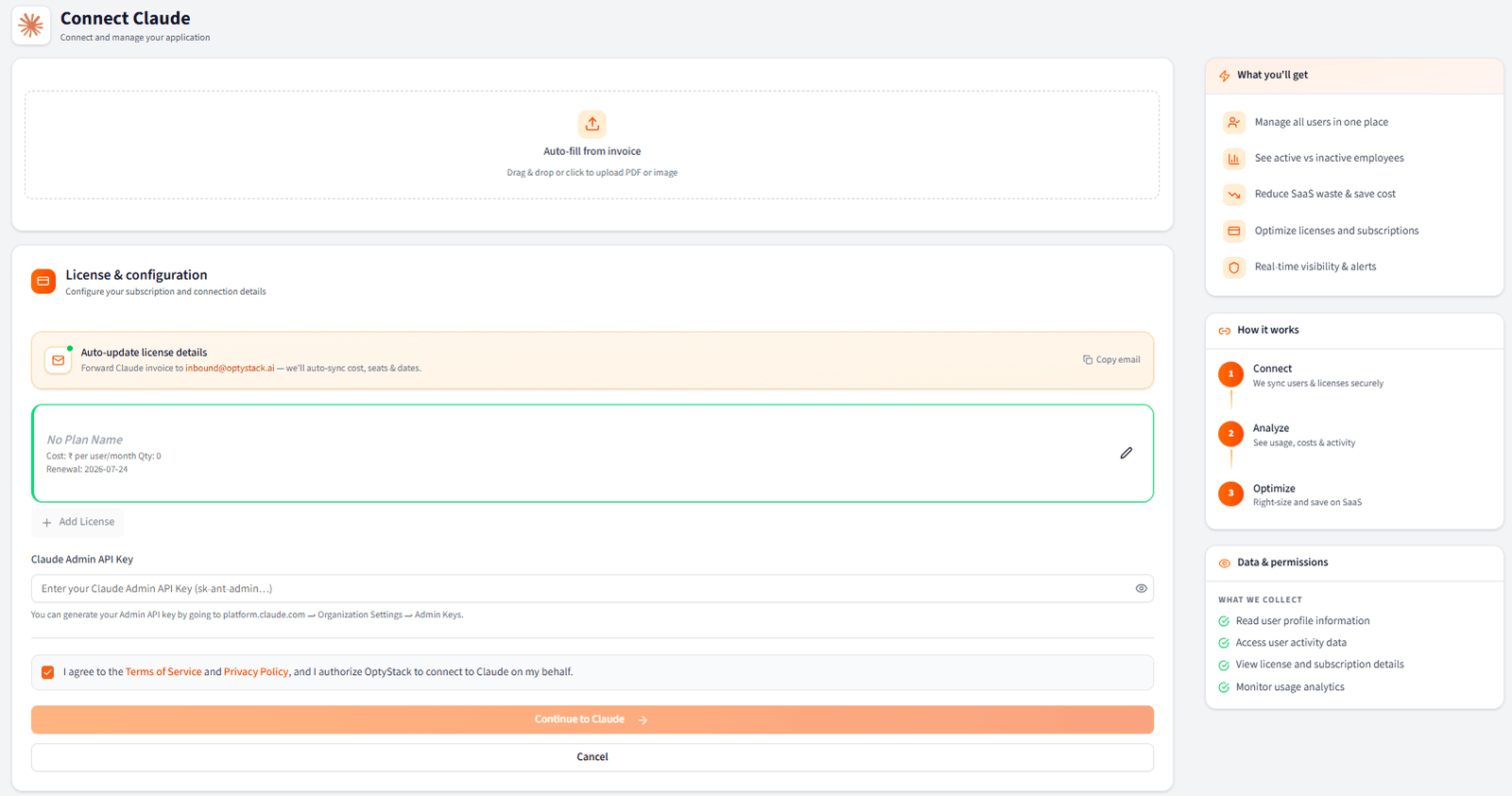
1. In the Applications section, under Available Applications, click on Configure Claude to integrate the application.
2. This section allows you to generate invoices and manage subscription plans. To integrate Claude, enter your API key and complete the configuration, so first you need to generate Admin Api key and then put it here. Follow the steps given below to generate key.
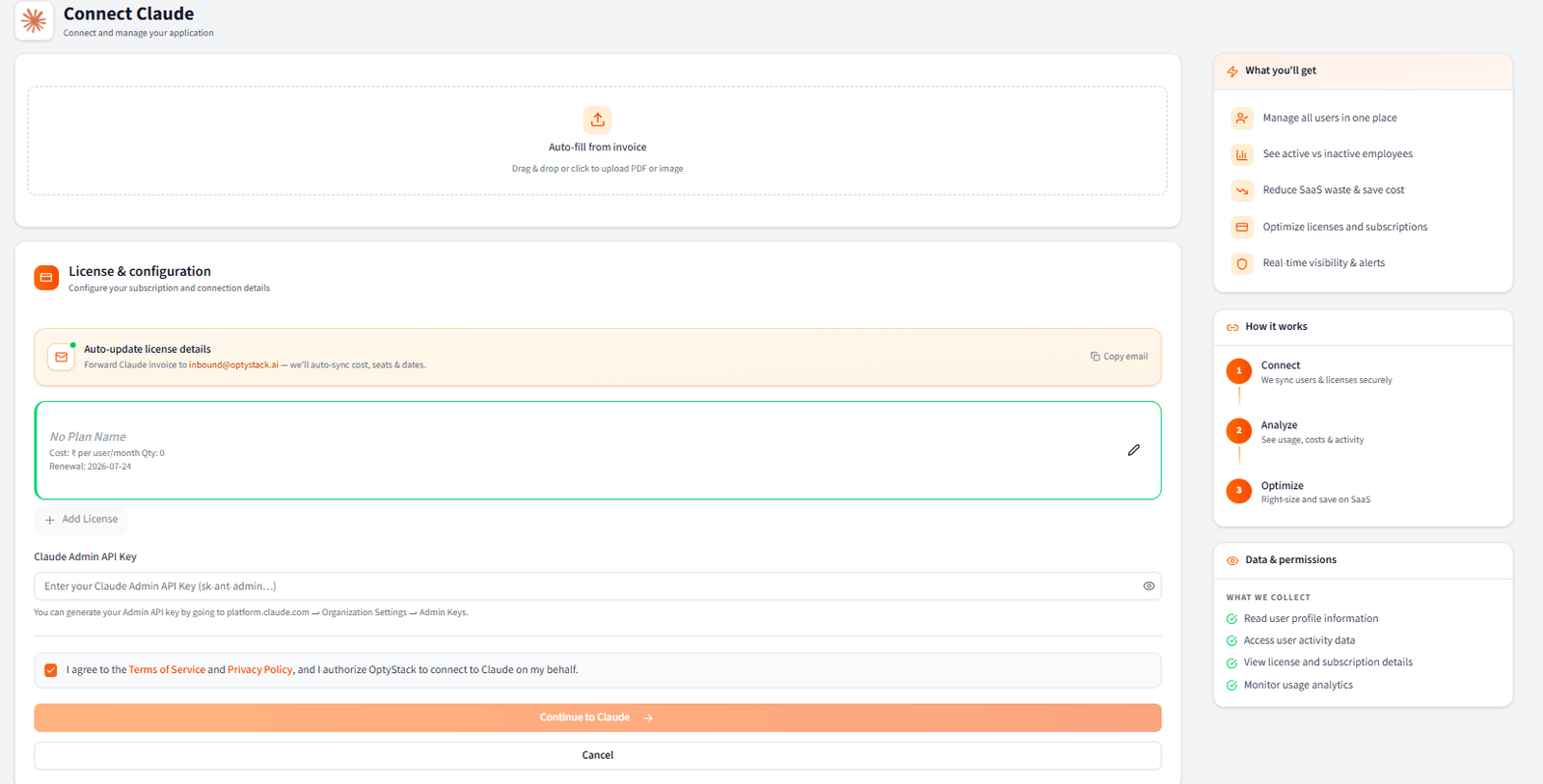
3. To generate a Claude API token follow the steps given below:
- Go to Claude Console (platform.claude.com) → Organization Settings → Admin Keys.
- Click “Create admin key”, give it a name, and generate the key.
- Copy and store it securely (you won’t be able to see it again).
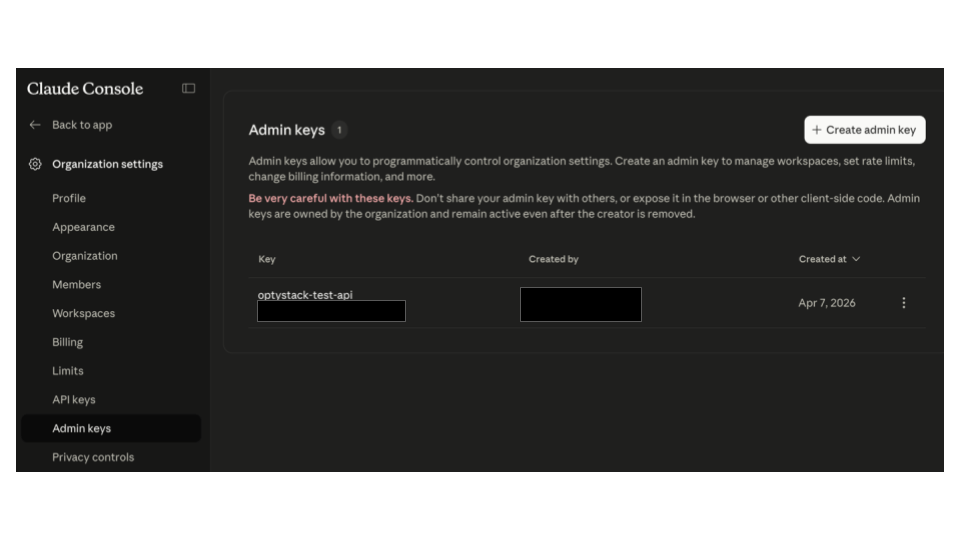 - Now enter your Claude Admin API key in the “Claude Admin API Key” field within the Claude Application Configuration page section to connect and integrate Claude with your application.
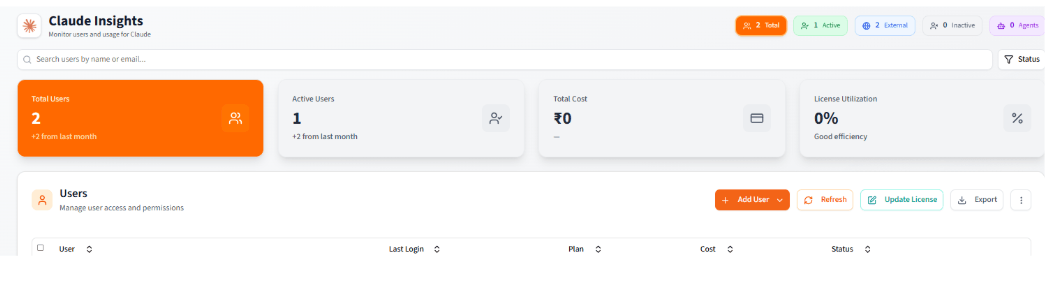
4. This dashboard provides an overview of Claude user management and usage. From here, you can monitor key metrics such as total users, active users, overall cost, and license utilization. The Users section allows administrators to view user details, track login activity, and check account status (e.g., Active or Pending).
This centralized panel helps ensure efficient user management, proper license allocation, and visibility into system usage.
Step 3: Disconnect an Application
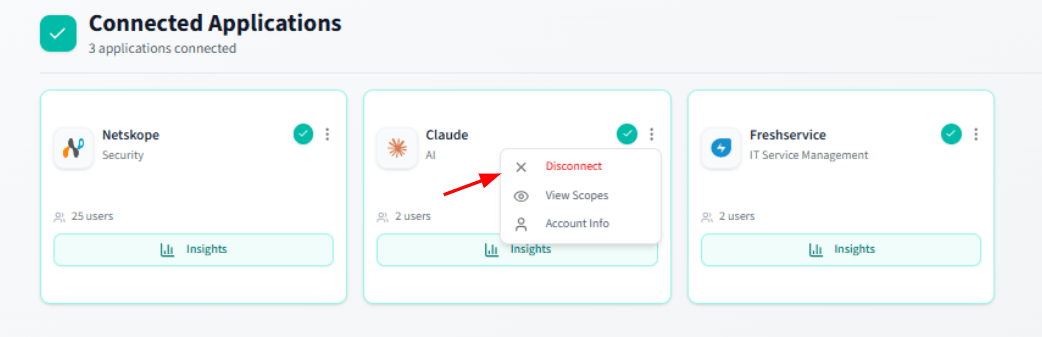
1. You can disconnect an application from the Application Hub by clicking the three-dot (⋮) menu on the app card and selecting Disconnect. This will revoke the connection for that app (e.g., Claude) and remove its access to your workspace.
Need Help?
If you experience issues while setting up an application, contact the OptyStack support team.
Email: support@optystack.ai
Live Chat: Available in your OptyStack dashboard
Documentation: Knowledge Base