Overview
OptyStack now allows administrators to discover the apps used by all the users across Organisation.
When you connect an application, OptyStack automatically retrieves user data, license details, and spend information to help you monitor utilization and reduce waste.
Only users with the Admin or Manager role can add or manage integrations. Users with the Read Only role can view data and reports but cannot make changes.
Step 1: Log in to the OptyStack Hub
Go to https://hub.optystack.ai
Log in with your registered email and password.
After logging in, you will see your main dashboard with spend summaries, active tools, and recommendations.
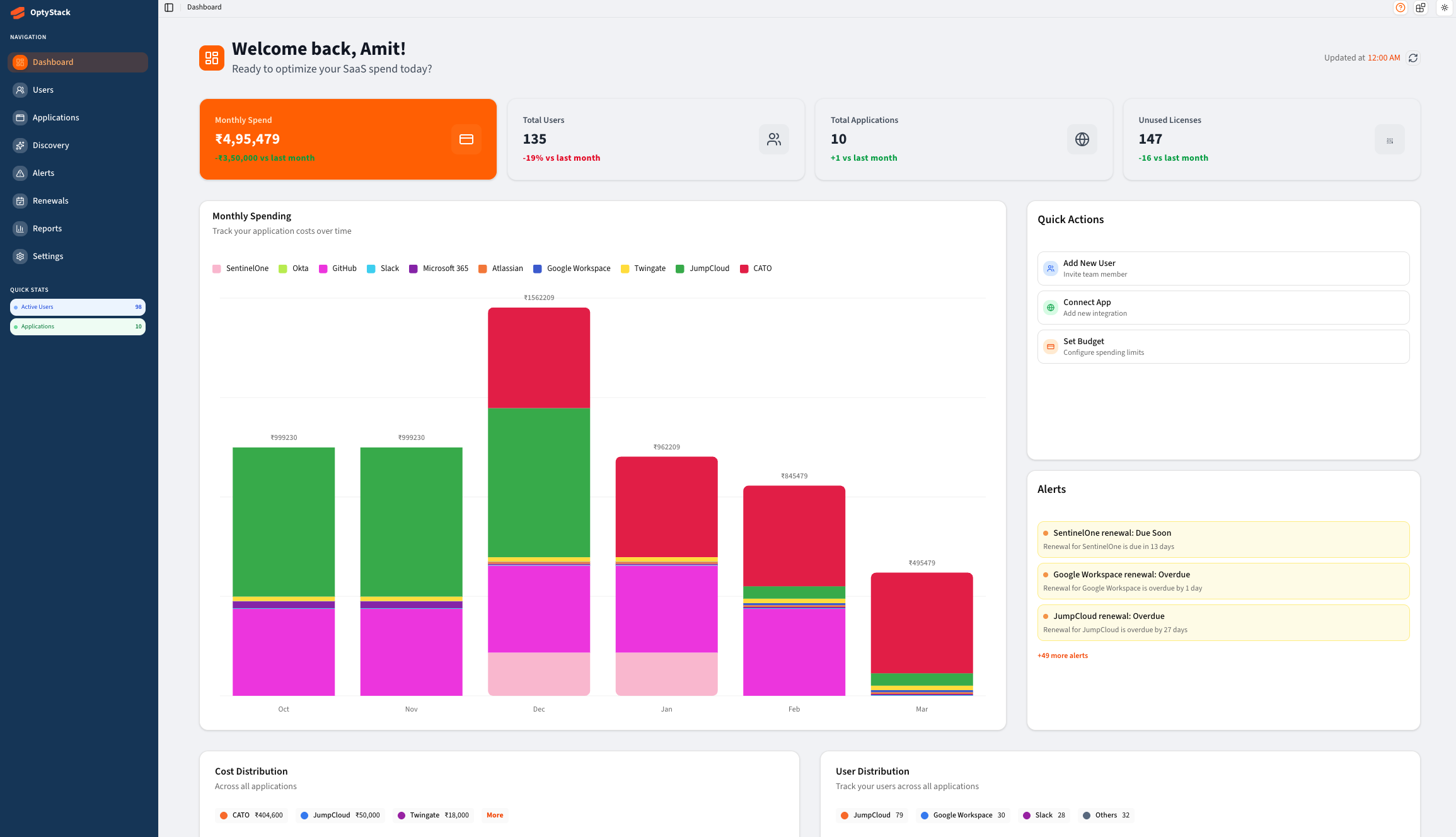
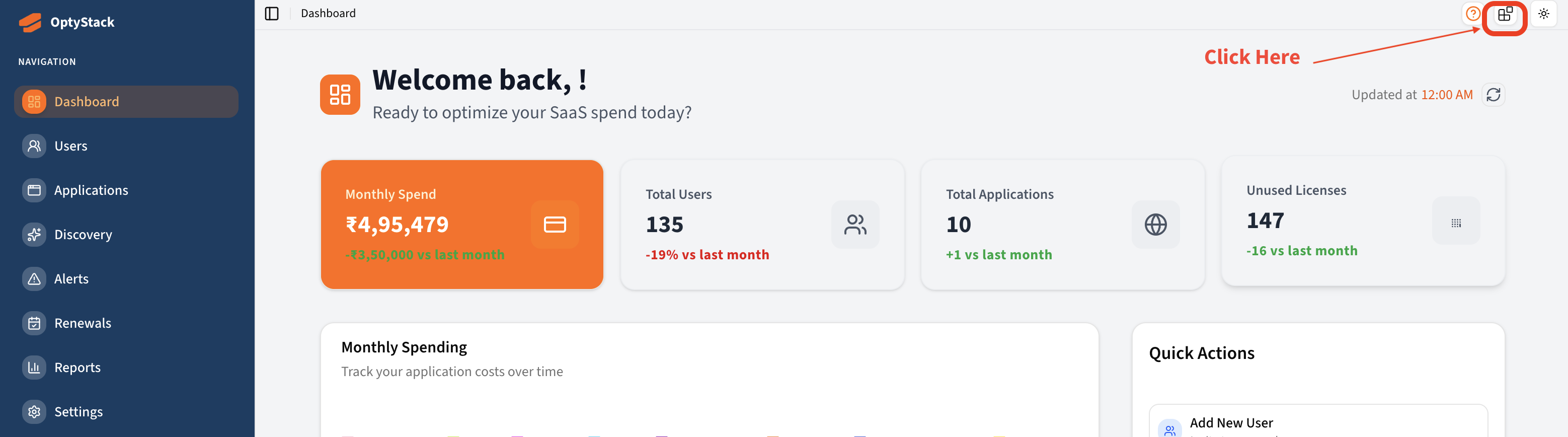
From the dashboard menu, look at the top right corner of the screen and click on the extension icon.
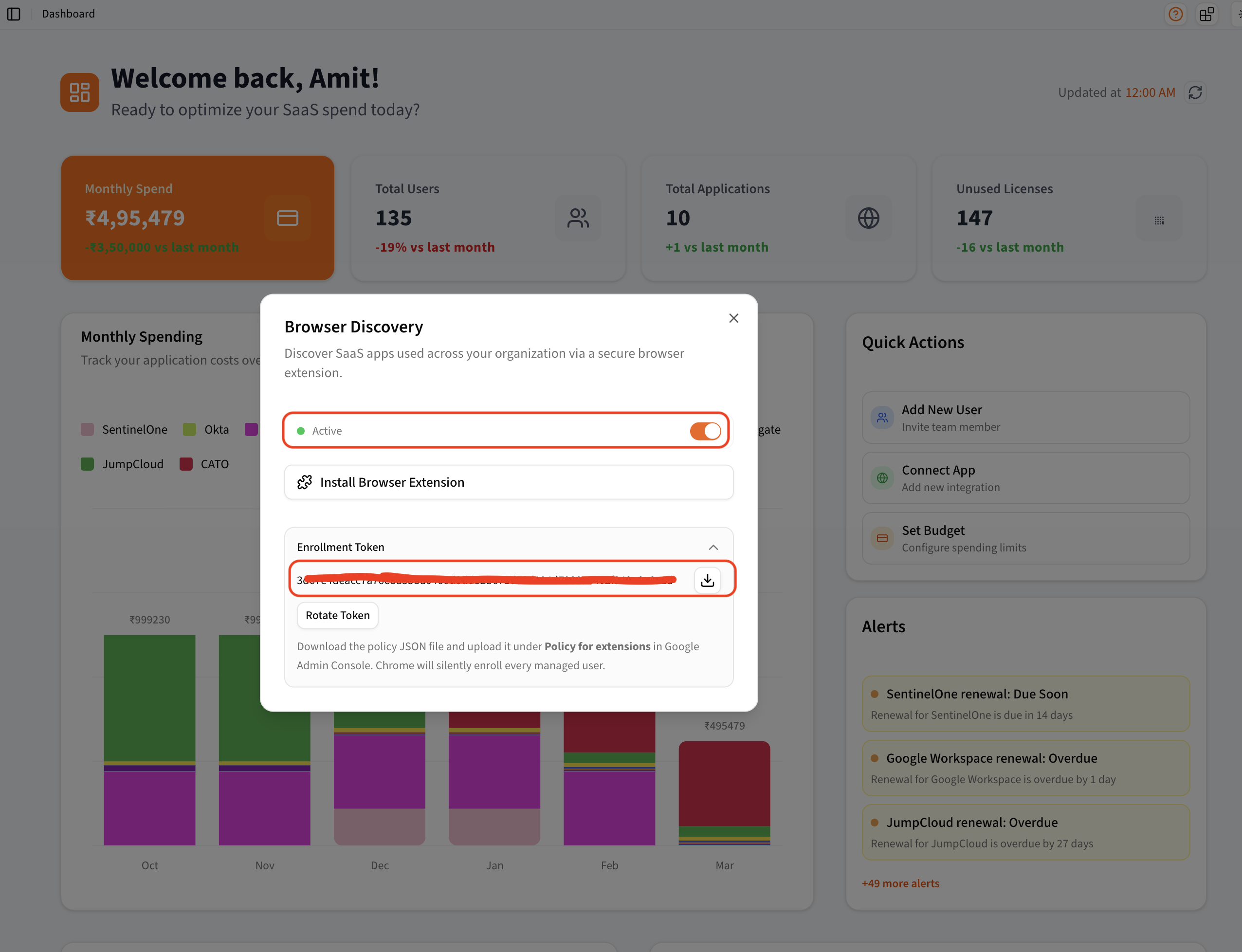
Activate the extension to see the enrollment token.
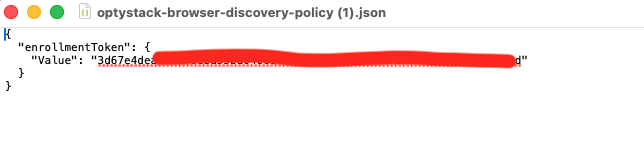
Download the token. You will get a JSON file. Open that in a text editor.
Go to your MDM provider and configure the Google Chrome policy for browser extension. We are using Google Workspace in this example: Go to Chrome browser >> Apps & extensions >> Select the group or OU >> Click on the + icon at the bottom right >> Add from Chrome web store >> Find OptyStack Now >> Select.
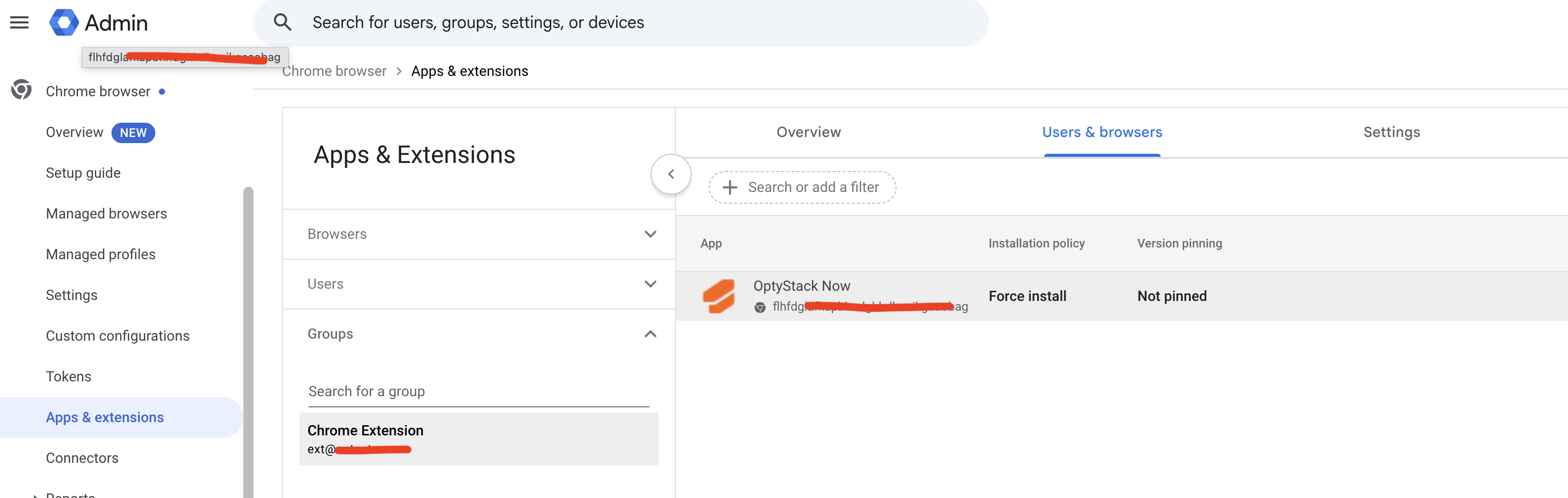
Click on the extension, find Policy for extension. Copy the content from the JSON file that you downloaded at step 6 and paste it here.
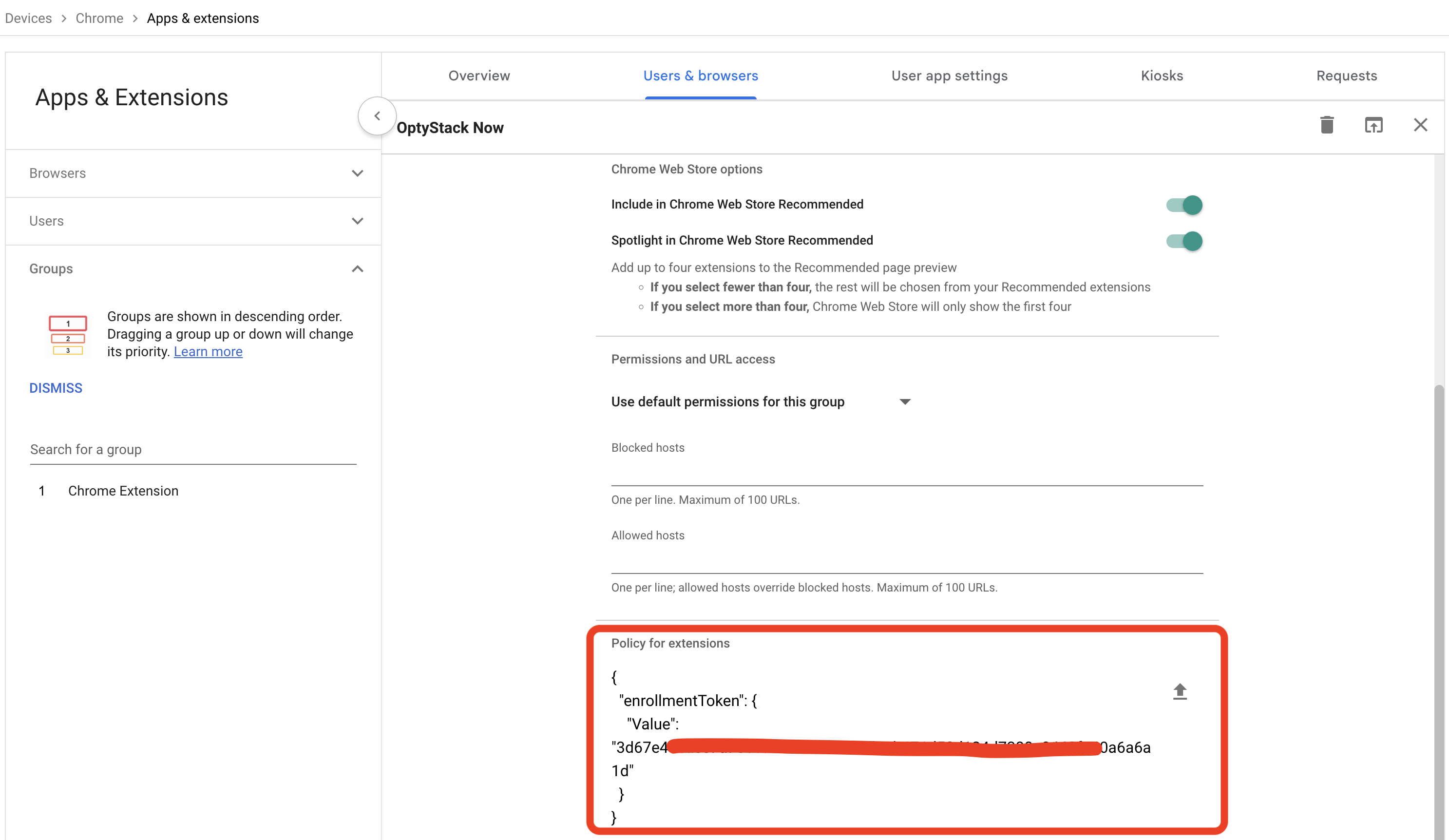
Hit save and we are good to go.
Step 2: Review Application Insights
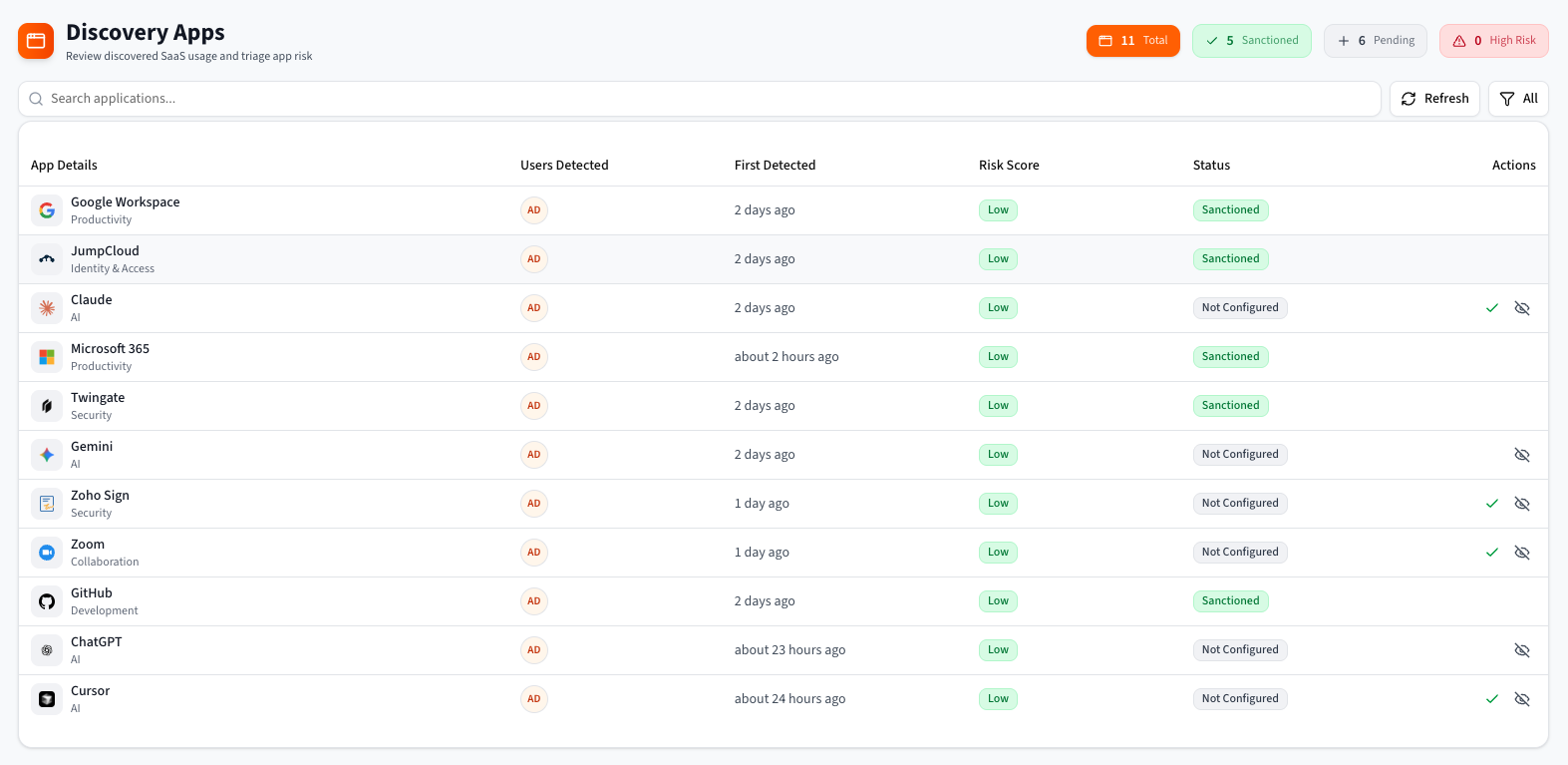
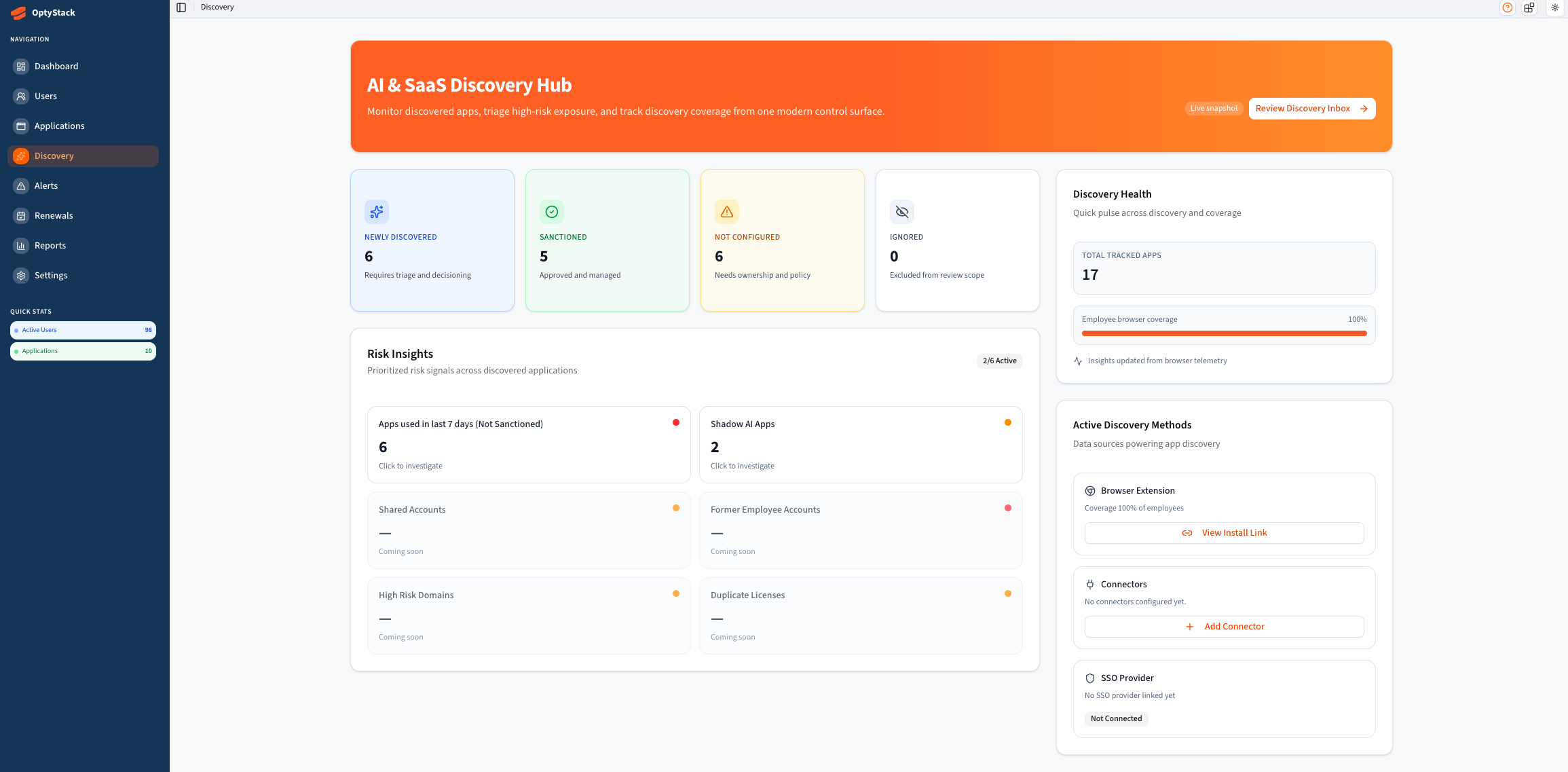 When data syncing is complete, you can view insights for each discovered application under Discovery. OptyStack displays key information such as:
Discovered Applications
Not configured ones
Sanctions
These metrics help you identify who is using what and make informed optimization decisions.
 Step 3: Set Up Alerts (Optional)
You can configure alerts to stay informed about important events related to your connected applications.
Go to Alerts → Alerts Settings.
Choose the alert type you want to enable, such as high spend, low usage, or renewal reminders.
Save your preferences.
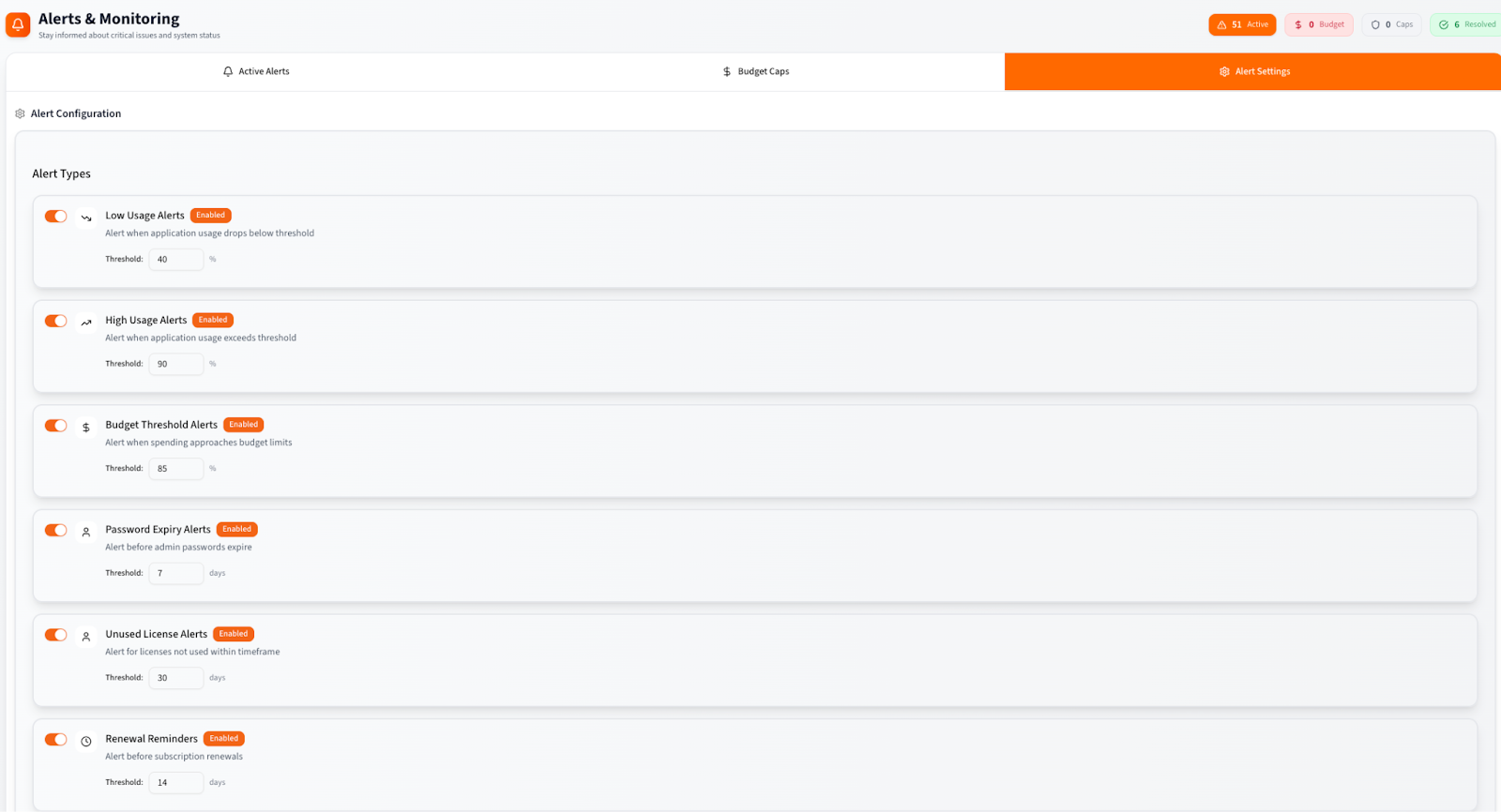 Alerts will be sent to your registered email and appear in your OptyStack notification center.If you do not find a particular app, you can contact OptyStack support to request a new integration.
Step 4: Disable the Discovery
If you need to disconnect an app:
Click again on the extension icon.
Deactivate.
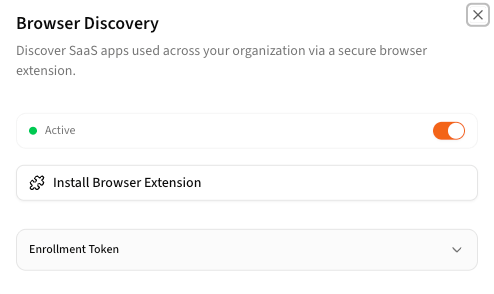 You can activate at any time using the same steps described earlier. Your historical data will remain available in your account.
Need Help?
If you experience issues while setting up an application, contact the OptyStack support team.
Email: support@optystack.ai
Live Chat: Available in your OptyStack dashboard
Documentation: Knowledge Base